
Python
In this article, we’ll explore the core concepts that make Python one of the most used programming languages, how to install it, and the main tools used by researchers and engineers.
A Python Tour
Section titled “A Python Tour”
Python, created by Guido van Rossum in the early 1990s, is a programming language known for its simplicity, readability, and versatility. Its clean syntax makes code easier to read and write compared with languages such as C, C++, and Rust.

Python uses dynamic typing, which means you don’t need to specify whether a variable is a number, a string, or another type when you create it. The interpreter determines the type during runtime, making Python more flexible compared to statically typed languages like C++ or Rust.
For example, in Python, you can write:
message = "My awesome message!"In contrast, C++ requires specifying the variable type:
std::string message = "My awesome message!";Another feature of Python is its clean and readable syntax, which often requires fewer lines of code compared to other programming languages.
For instance, printing “Hello, World!” in Python is as straightforward as:
print("Hello, World!")In C++, even a simple program like this requires additional code:
#include <iostream>
int main() {    cout << "Hello, World!" << endl;    return 0;}
Python is an interpreted language, which means its code is executed line by line without the need for a prior compilation step. This allows for immediate testing and debugging but can result in slower execution speeds compared to compiled languages like C++ or Rust, where code is translated into machine code before execution. While compilation adds an extra step, it often results in faster runtime performance.
Installation and Considerations
Section titled “Installation and Considerations”There are several ways to install Python. I recommend using the uv package manager, which can help you with tasks such as:
- Installing and managing specific Python versions
- Creating and managing virtual environments
- Installing and managing Python packages and tools
- Replacing several tools, including
conda,pyenv,pip,poetry,virtualenv, and more
Installing uv
Section titled “Installing uv”To install uv, open the Terminal or PowerShell and paste the following code:
curl -LsSf https://astral.sh/uv/install.sh | shbrew install uvpowershell -ExecutionPolicy ByPass -c `"irm https://astral.sh/uv/install.ps1 | iex"Installing Python
Section titled “Installing Python”To install Python, enter the following code in the Terminal or PowerShell:
-
Update the shell
PATH:Terminal window uv tool update-shell -
Install Python:
Terminal window uv python install 3.14
Running Python Code
Section titled “Running Python Code”In this article, we’ll explore three ways to run Python code:
- The Python interpreter for quick feedback
- IPython for an interactive development experience
- JupyterLab for developing complex, interactive projects
The Python Interpreter
Section titled “The Python Interpreter”The Python interpreter is ideal for quick testing and run simple scripts.
-
Launch the Python interpreter:
Terminal window uv run pythonYou’ll see something like this:
Terminal window uv run pythonPython 3.14.7 (main, Sep 1 2026, 14:05:28)Type "help", "credits" or "license" for more information.>>> -
Hello, world!
Tradition suggests that the first program in a new language should print the words
Hello, world!on the screen. In Python, this can be done in a single line:print("Hello, world!")Type it into the Python interpreter:
>>> print("Hello, world!")Hello, world!Try calculating the sum of the first 5 natural numbers:
>>> 1 + 2 + 3 + 4 + 515
IPython
Section titled “IPython”IPython offers code completion, syntax highlighting, and the ability to execute code line by line. It is great for interactive learning and experimentation.
-
Install IPython:
Terminal window uv tool install ipython --with pip -
Launch IPython:
Terminal window ipythonYou’ll see something like this:
Terminal window Python 3.14.7 (main, Sep 1 2026, 14:05:28)IPython 9.17.1 -- An enhanced Interactive Python.In [1]: -
Exploring Tab Completion:
IPython’s tab completion lets you complete code with a single press of the Tab key. This simple feature reduces typos and saves time.
For example, type
prin IPython and press Tab:In [1]: prprint() property %precision %prunSelect
print( )and complete the"Hello, world!"example:In [1]: print("Hello, world!")Hello, world! -
Discovering Object Attribute Completion:
In Python, attributes describe an object, while methods define what it can do. IPython’s object attribute completion makes it easy to discover both.
For example, create a string:
In [2]: name = "Marcos"Then type
name.and press Tab to see the string’s available attributes and methods:In [3]: name.capitalize() lower() upper() ...
JupyterLab
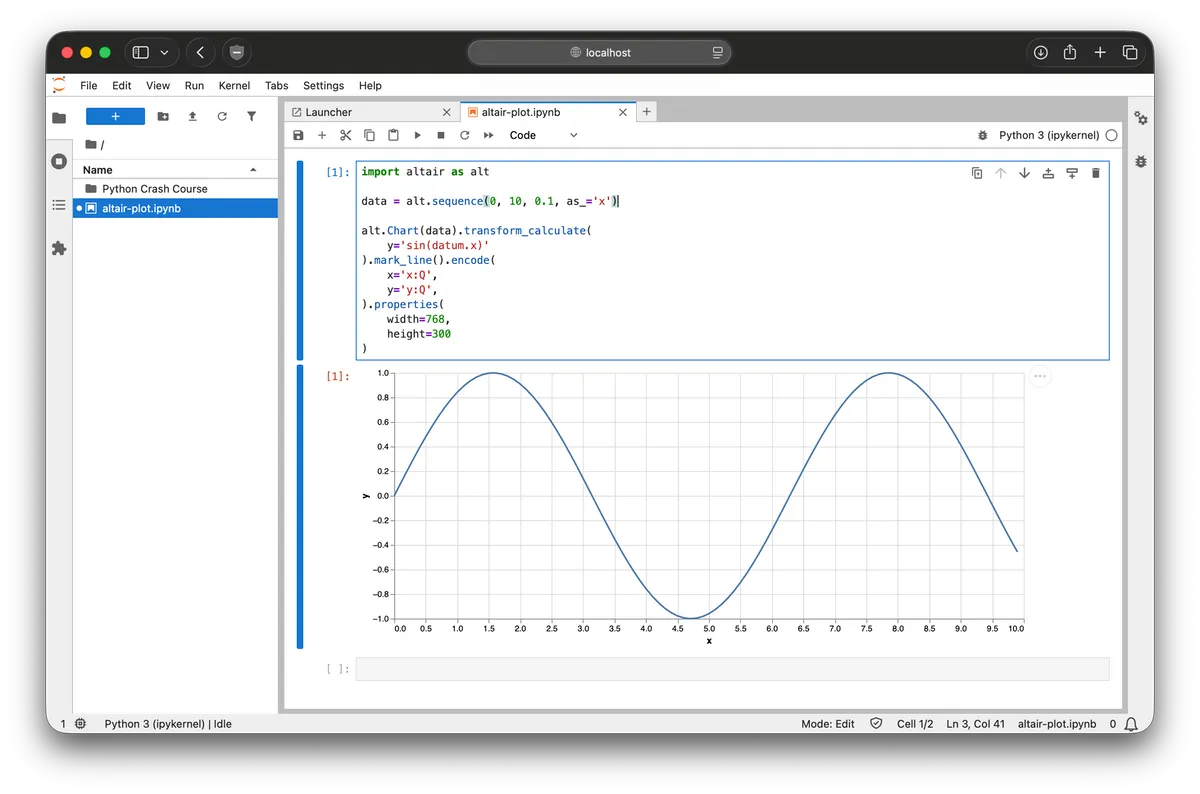
Section titled “JupyterLab”JupyterLab is a web application for creating interactive documents that combine code, text, equations, and rich visuals. It provides Python developers with an intuitive environment for coding and experimentation.
-
Install JupyterLab:
Terminal window uv tool install jupyterlab --with altairThis will install JupyterLab with the Altair extension that allows us to create interactive visualizations.
-
Launch JupyterLab:
Terminal window jupyter-labThis will launch the JupyterLab server and automatically open it in your web browser.
-
Ploting a sine wave:
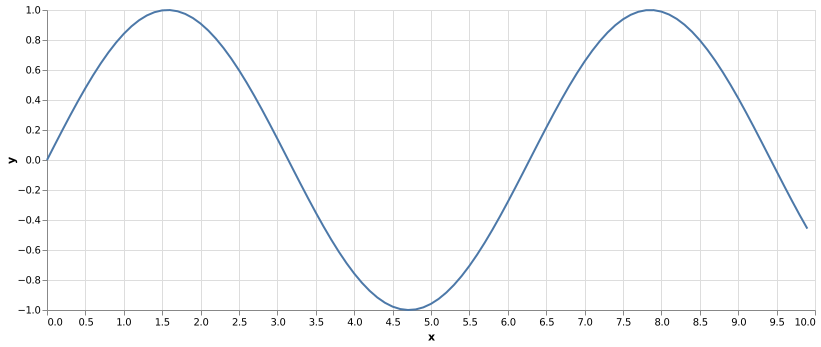
Here’s how to create a sine wave plot using Altair, a library for interactive visualizations. Our main focus is to present JupyterLab’s functionality, so don’t worry about understanding the code just yet.
Create a new notebook by selecting File → New → Notebook, then paste the code below:
import altair as altdata = alt.sequence(0, 10, 0.1, as_='x')alt.Chart(data).transform_calculate(y='sin(datum.x)').mark_line().encode(x='x:Q',y='y:Q',).properties(width=768,height=300)To run the code, use Shift + Enter:
Working on projects
Section titled “Working on projects”Create a new Python project:
uv init hello-worldRun the hello-world main.py example:
uv run ./hello-world/main.pyuv will create the following files:
Directoryhello-world
- .git
Directory.venv
- bin
- lib
- pyvenv.cfg
- .gitignore
- main.py
- pyproject.toml
- README.md
- uv.lock
Python environments
Section titled “Python environments”Create a virtual environment:
uv venvYou can create a virtual environment with a specific Python version:
uv venv --python 3.14Activate the virtual environment:
source .venv/bin/activateInstall a package in the virtual environment:
uv pip install ...List all installed packages in the virtual environment:
uv pip listExit the virtual environment:
deactivateWrapping Up
Section titled “Wrapping Up”So, that’s a quick tour of Python and the tools you’ll use to get started.
You’ve learned how Python’s simple syntax and dynamic typing make it approachable, how to install Python with uv, and how to run code with the Python interpreter, IPython, and JupyterLab. You also saw how uv can help you create projects, manage Python versions, and work with virtual environments.
There’s a lot more to Python, of course, but you don’t need to learn everything at once. Pick a small project, open your favorite environment, and start experimenting. That’s where things really start to click.
Happy coding!