
Tmux Cheat Sheet
At some point, every engineer or researcher needs to work in the command line.
Tmux makes that work easier by keeping sessions alive, organizing multiple tasks, and letting you reconnect without losing progress. It is especially useful for remote servers, long-running jobs, and multitasking in a terminal.
Below is a concise and practical tmux cheat sheet covering the most useful commands for daily terminal workflows, session management, window navigation, and productivity.

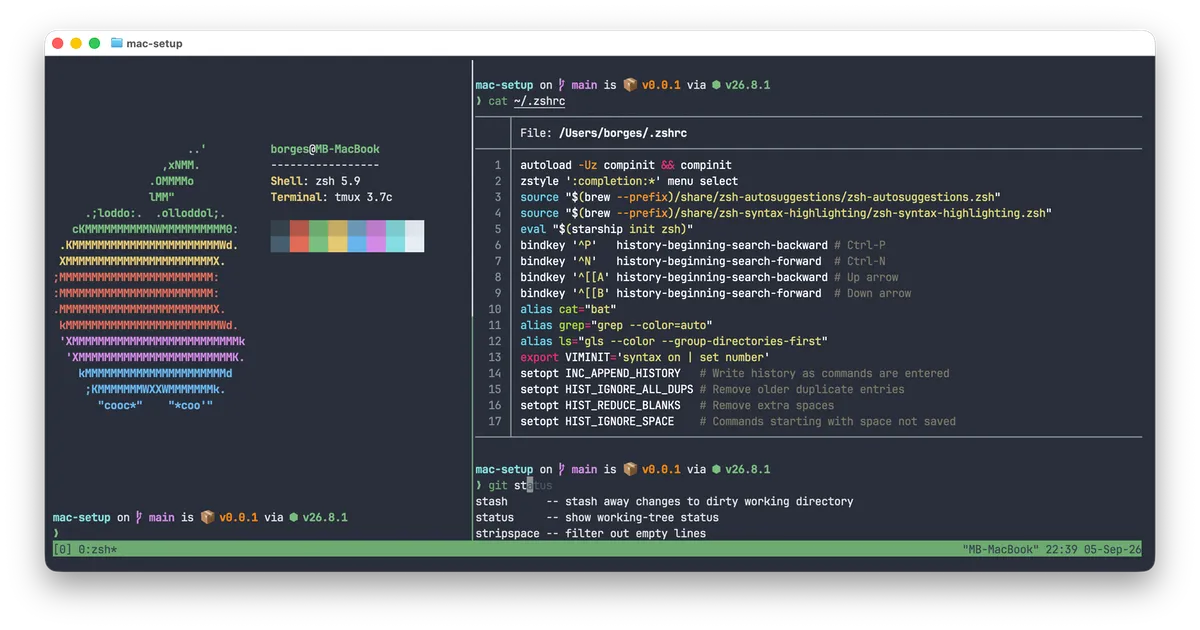
Tmux is a terminal multiplexer that helps you manage multiple tasks and workflows.
With tmux, you can:
- Sessions: Preserve your work and keep tasks running, even if you log out or disconnect.
- Windows: Create separate workspaces for different projects or tools within the same session.
- Panes: Split a window into multiple views so you can monitor and interact with several processes side by side.
Installing tmux
Section titled “Installing tmux”Often pre-installed.
Install Tmux using Homebrew:
brew install tmuxWindows
Section titled “Windows”Install Tmux via WSL (Windows Subsystem for Linux):
sudo apt updatesudo apt install tmuxTmux sessions
Section titled “Tmux sessions”Start a default session
Section titled “Start a default session”tmuxStart a named session
Section titled “Start a named session”tmux new -s <session-name>List sessions
Section titled “List sessions”tmux lsAttach to a session
Section titled “Attach to a session”tmux attach -t <session-name>
tmux a -t <session-name>Kill a session
Section titled “Kill a session”tmux kill-session -t <session-name>Kill all sessions
Section titled “Kill all sessions”tmux kill-serverRename current session
Section titled “Rename current session”Ctrl-b $Choose a session from a list
Section titled “Choose a session from a list”Ctrl-b sDetach from a session
Section titled “Detach from a session”Leave the current tmux session running in the background so you can come back to it later.
Ctrl-b dClose a session
Section titled “Close a session”Ctrl-dTmux windows
Section titled “Tmux windows”Create a new window
Section titled “Create a new window”Ctrl-b cRename a window
Section titled “Rename a window”Ctrl-b ,List windows
Section titled “List windows”Ctrl-b wMove between windows
Section titled “Move between windows”Ctrl-b nCtrl-b pGo to a specific window
Section titled “Go to a specific window”Ctrl-b 0Ctrl-b ...Ctrl-b 9Close window
Section titled “Close window”Ctrl-b &Tmux panes
Section titled “Tmux panes”Split vertically
Section titled “Split vertically”Ctrl-b %Split horizontally
Section titled “Split horizontally”Ctrl-b "Move between panes
Section titled “Move between panes”Ctrl-b ← ↓ ↑ →Resize a pane
Section titled “Resize a pane”Ctrl-b hold Ctrl ← ↓ ↑ →macOS only:
Ctrl-b hold Shift + Option ← ↓ ↑ →Maximize/minimize a pane
Section titled “Maximize/minimize a pane”Ctrl-b zChange layout
Section titled “Change layout”Ctrl-b SpaceClose a pane
Section titled “Close a pane”Ctrl-dSearching in tmux
Section titled “Searching in tmux”You can search through your tmux history using copy mode. This allows you to scroll back and find specific text in the buffer.
-
Enter tmux copy mode:
Ctrl-b [ -
Start a search:
Search downwards:
Ctrl-sSearch upwards:
Ctrl-r -
Type your search term and press
Enter. -
Navigate through matches:
Press
nto jump to the next occurrence.Press
Nto jump to the previous occurrence. -
Exit copy mode:
Press
qorEscapetwice to exit copy mode.
Searching for a window in tmux
Section titled “Searching for a window in tmux”When you have multiple windows open, you can quickly jump to one based on text currently displayed inside it.
-
Open the find-window prompt:
Ctrl-b f -
Type your search term and press
Enter. -
Select the matching window:
If there’s only one match, tmux will switch to it automatically.
If multiple windows match, you’ll see a list and can choose the one you want.
This is just the beginning
Section titled “This is just the beginning”We’ve demystified the essential tmux shortcuts you need to manage sessions, switch between windows, and stay organized while working in the terminal.
With these foundations in place, you’re ready to build a faster, more efficient command-line workflow using tmux every day.
This is just the beginning of your journey. May the Force be with you!