
VS Code Setup

Visual Studio Code is a code editor developed by Microsoft.
I’ve tried several tools, including Neovim, JetBrains editors, and Cursor. They’re all powerful, but for my needs and minimalist approach, I find myself using Zed as my main editor and VS Code mainly for LaTeX projects.
VS Code Extensions
Section titled “VS Code Extensions”With extensions, you can add languages, debuggers, and tools to customize your setup and enhance your development workflow.
Python
Section titled “Python”
I recommend installing the Python extension and Ruff. The Python extension provides IntelliSense, debugging, testing, and environment management, while Ruff handles linting and formatting.
C and C++
Section titled “C and C++”
For C and C++, I recommend clangd, which provides code completion, diagnostics, navigation, formatting, refactoring, and other language-server features.

For Rust, rust-analyzer provides comprehensive language support, including code completion, navigation, diagnostics, refactoring, and inlay hints.
Web Development
Section titled “Web Development”
VS Code provides built-in support for HTML, CSS, JavaScript, and TypeScript, including syntax highlighting, IntelliSense, navigation, and basic formatting. I recommend adding Live Preview for live reloading and previewing static web projects.

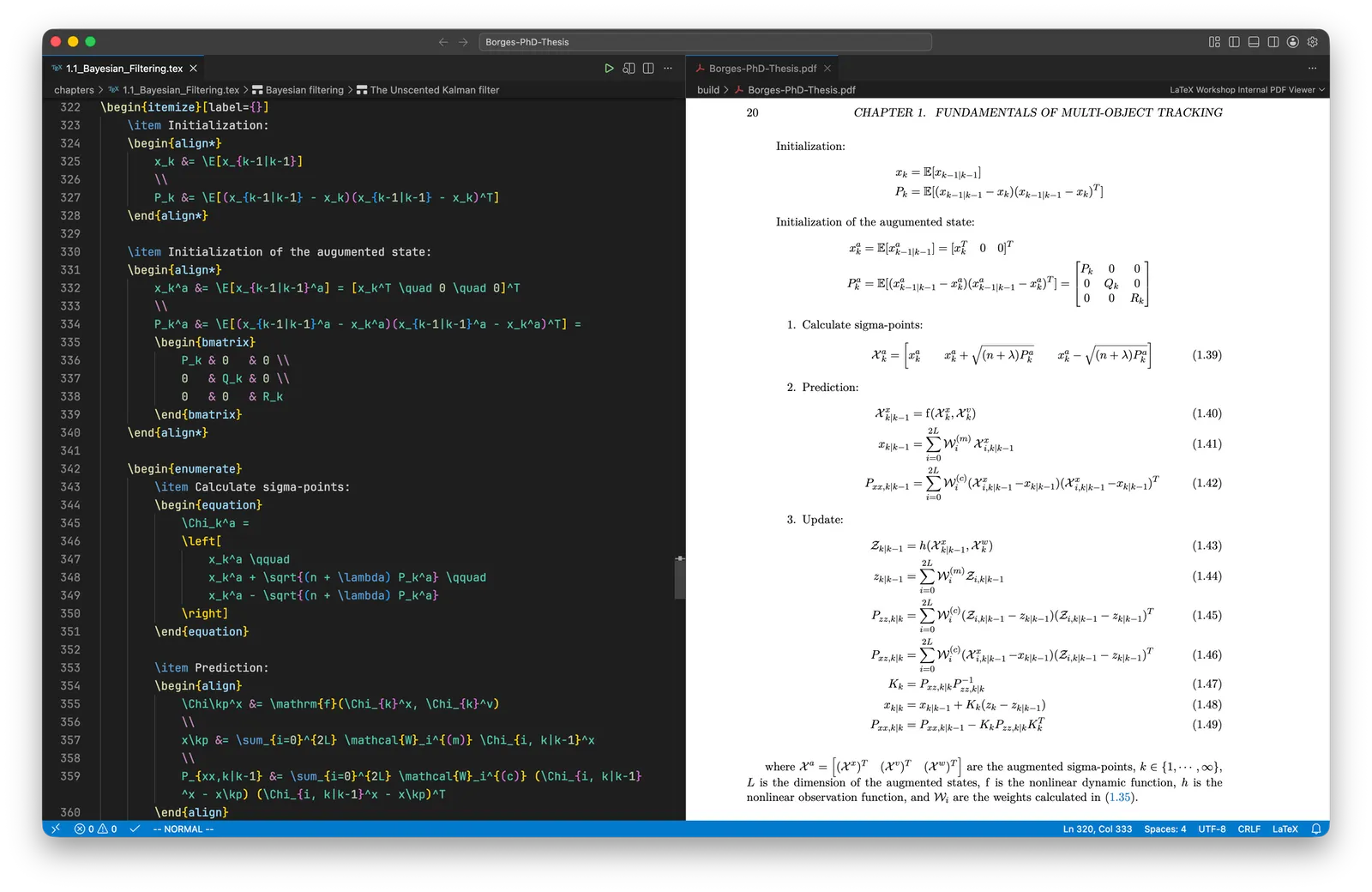
I recommend installing MacTeX and the LaTeX Workshop extension for VS Code. MacTeX provides everything needed to run LaTeX on macOS, while LaTeX Workshop provides syntax highlighting, IntelliSense, linting, build automation, and live PDF preview.
Setting up VS Code
Section titled “Setting up VS Code”-
Install
codecommand in thePATH:Open VS Code, press
⌘ Shift Pto open the Command Palette, and run:Shell Command: Install 'code' command in PATH -
Update the VS Code settings:
Copy and paste that in the terminal.
Terminal window SETTINGS="$(cat <<'EOF'{"workbench.sideBar.location": "right","workbench.activityBar.location": "bottom","workbench.startupEditor": "none","editor.fontFamily": "JetBrainsMonoNL Nerd Font","editor.fontSize": 15,"editor.lineHeight": 1.6,"editor.minimap.enabled": false,"editor.wordWrap": "bounded","window.newWindowDimensions": "maximized","extensions.ignoreRecommendations": true,"chat.disableAIFeatures": true,"telemetry.telemetryLevel": "off","telemetry.feedback.enabled": false,"latex-workshop.latex.recipe.default": "Latexmk (LuaLaTex)","latex-workshop.latex.outDir": "./build","latex-workshop.latex.recipes": [{"name": "Latexmk (LuaLaTex)","tools": ["latexmk (lualatex)"]}],"latex-workshop.latex.tools": [{"name": "latexmk (lualatex)","command": "latexmk","args": ["-lualatex","-shell-escape","-synctex=1","-interaction=nonstopmode","-output-directory=./build","%DOC%"]}],}EOF)"echo "${SETTINGS}" > "${HOME}/Library/Application Support/Code/User/settings.json" -
Set VS Code as your default Git editor, diff, and merge tool:
Terminal window git config --global core.editor 'code --wait'git config --global diff.tool vscodegit config --global difftool.vscode.cmd 'code --wait --diff $LOCAL $REMOTE'git config --global merge.tool vscodegit config --global mergetool.vscode.cmd 'code --wait $MERGED'